Guides › Redact a PDF on iPad
How to redact a PDF on iPad
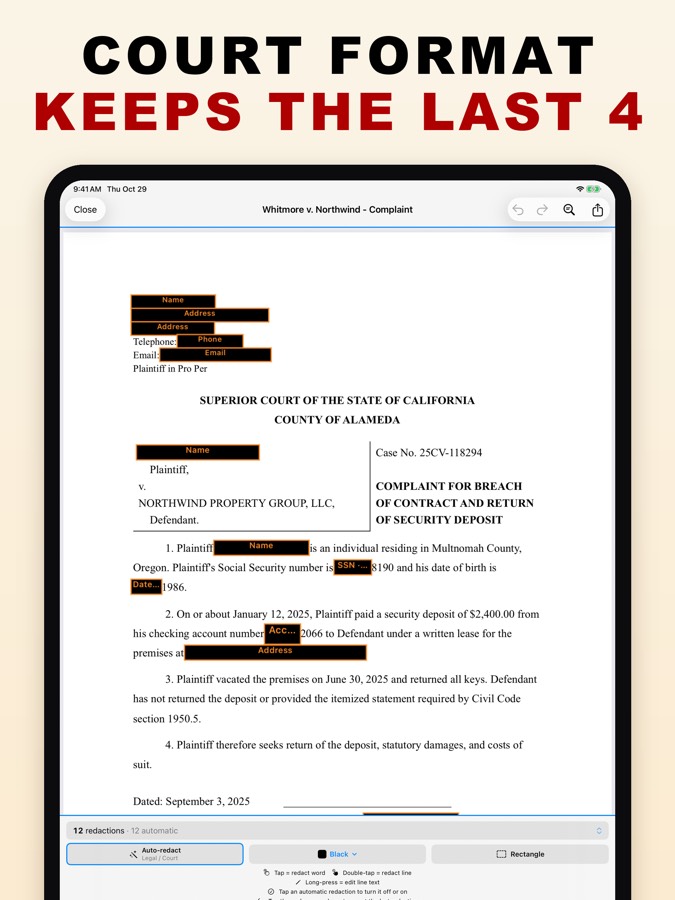
On iPad, open the PDF in PDF Redact, review the redactions it finds automatically, add your own with a tap or a rectangle, and export. The export removes the underlying text and passes a privacy audit before you share it. For a stack of documents, use Batch Redact.
- Open PDF Redact and tap Open PDF or Photo, or share a PDF to it from Files or Mail.
- Review the automatic redactions. Tap any of them to turn it off.
- Tap a word, double-tap a line, or draw a rectangle to add your own. Use Find & Redact to catch every occurrence of a name or number.
- Choose the box style if you need one: black, white, blur or pixelate.
- Export. The privacy audit runs automatically and reports Verified Clean when the file is safe to share.
Redacting many documents
From the home screen, choose Batch Redact and select several PDFs or photos. The app runs detection on each one; tap any document to preview its redactions, then export them together. Batch redaction needs a subscription. See batch redaction.
One purchase, every device
The iPhone, iPad and Mac versions are the same App Store purchase, so a subscription on one covers the others signed in to the same Apple Account.
PDF RedactWorks on iPhone, iPad and Mac. Your first export is free.

Questions
- Which iPads are supported?
- Any iPad that runs iPadOS 17 or later.
- Is the redaction permanent?
- Yes. The exported pages are rebuilt from what is visible, so redacted text is removed, not hidden behind a box.
- Can I use it offline?
- Yes. Everything runs on the iPad; no connection is needed to redact.
Related guides
- Batch redact PDFsApply the same redaction rules to many documents at once.
- Redact a court filingFed. R. Civ. P. 5.2 and Bankruptcy Rule 9037: last four digits.
- Redact a PDF on MacPreview’s Redact tool vs. automatic detection on the Mac.
Updated 2026-10-29.