How to redact a PDF on iPhone
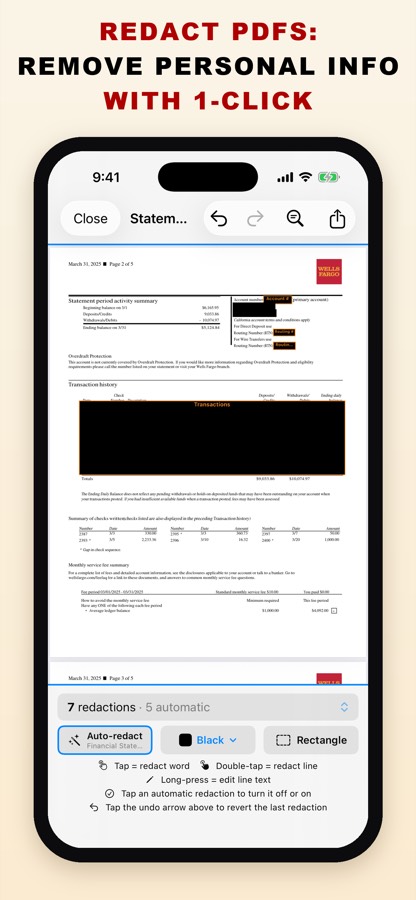
To redact a PDF on iPhone, use an app that removes the text under each box rather than drawing over it. In PDF Redact: open the PDF, let it find names, addresses, Social Security and account numbers automatically, tap anything else you want hidden, then export. The exported file is rebuilt from what you can see and checked by a built-in privacy audit before you share it. Nothing is uploaded.
- Install PDF Redact from the App Store and open it.
- Tap Open PDF or Photo and choose Files (or Photo Library for a picture of a document). You can also share a PDF to the app from Mail, Files or Safari.
- Wait a moment while the app reads the document on your iPhone. It picks a preset for the kind of document (for example Financial Statement or Legal / Court) and boxes what it finds.
- Review the boxes. Tap an automatic redaction to turn it off. Tap a word to redact it, double-tap to redact a whole line, or use the Rectangle tool to cover an area such as a signature or photo.
- To hide something that appears many times, use Find & Redact (the magnifying glass): search for a word or number and redact every match.
- Tap the export button (top right). The app rebuilds the pages, runs its privacy audit, and shows Verified Clean when every check passes. Save it to Files or share it.
Why not use Markup?
Drawing a black shape with a markup or annotation tool is not redaction. The shape sits on top of the page and the text underneath usually stays in the file, where anyone can select, copy or search it. Real redaction deletes the text and any hidden copies of it.
What the export guarantees
Before you share, PDF Redact checks the file it is about to give you:
- Redacted text removed — no searchable text sits under any redaction box.
- No missed copies — nothing you redacted still appears unredacted somewhere else in the file.
- Original text removed — pages are rebuilt from what is visible, so only unredacted words remain searchable.
- Searchable text visible — the text you kept is still searchable.
- Metadata stripped — no author, creator or title metadata.
- No annotations and bookmarks clean — comments, hidden annotations and outline entries are gone.
Everything you didn’t redact stays searchable, and the file is saved as PDF/A. You can add a password when exporting.

Questions
- Is it free?
- Your first export is free. After that you can subscribe (monthly with a free trial, or yearly) or buy a one-time pack of five exports.
- Does it upload my document?
- No. Detection, redaction and the audit all run on your iPhone. No account is needed.
- Does it work on scanned PDFs and photos?
- Yes. It reads scans and photos with on-device text recognition. See redacting a scan or photo.
- Which iPhones are supported?
- Any iPhone that runs iOS 17 or later.
Related guides
- Redact a bank statementFor a rental, loan or job application: what to hide and what to keep.
- Check a PDF is really redactedFour tests that catch fake redactions before you send.
- Redact without uploadingWhy on-device redaction matters for sensitive files.
Updated 2026-10-29.