Guides › Redact a credit card statement
How to redact a credit card statement
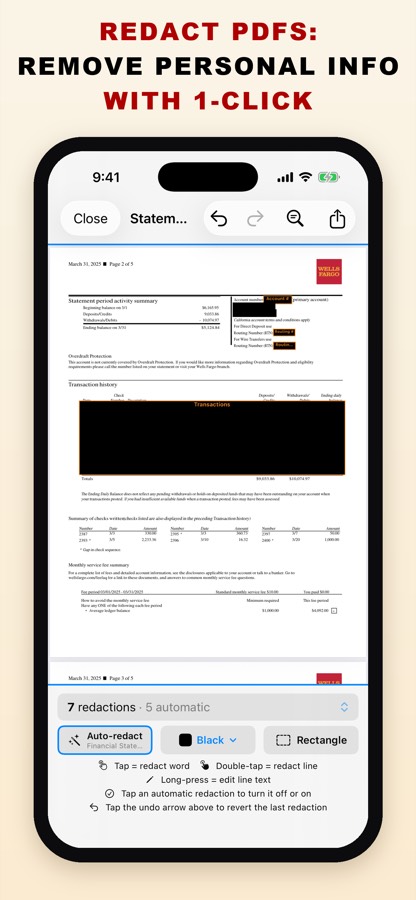
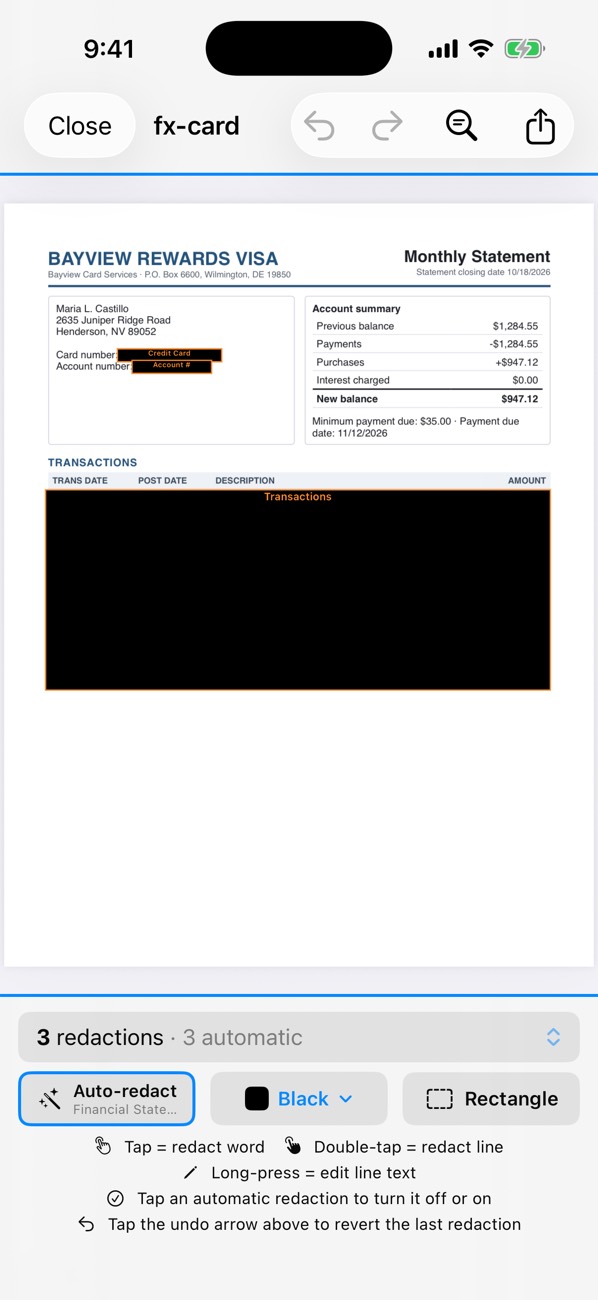
Hide the card number (or all but the last four digits), the account number and the list of purchases; keep your name, the statement period and the balance or payment due. PDF Redact recognises card statements and applies the Financial Statement preset, which does exactly that, and the export removes the hidden text instead of covering it.
- Download the statement as a PDF from your card issuer.
- Open it in PDF Redact. Card and account numbers and the transaction table are redacted automatically; your name, address and balances stay visible.
- Want to keep the last four digits of the card? Turn on Court filing format in the detection settings.
- If you need to show a particular payment, turn off the transaction table’s redaction and redact the other rows by double-tapping them.
- Export the verified file.
Card numbers often repeat in headers, footers and the payment slip on the last page. The privacy audit checks that no copy is left unredacted.

PDF RedactWorks on iPhone, iPad and Mac. Your first export is free.

Questions
- Is a full card number detected even when it's split by spaces?
- Yes. Full card numbers are found with or without spaces or dashes. Statements that print only the last four digits have nothing more to hide there.
Related guides
- Redact a bank statementFor a rental, loan or job application: what to hide and what to keep.
- Rental application documentsWhat to hide on statements, pay stubs and ID for a landlord.
- Check a PDF is really redactedFour tests that catch fake redactions before you send.
Updated 2026-10-29.